The easiest note storage and retrieval. 100% free.
Anonynote is a lightweight, no-fuss notepad app that lets you store and retrieve text from any device. No accounts. No passwords. No app store. Just open a browser, type a notepad name, and you're in.
How It Works
Every notepad has a name — up to 16 characters, case-sensitive, spaces and emojis welcome. That name is your key: anyone who knows it can open, read, and edit that notepad, so treat it the way you'd treat a password. The more unique, the better.
There's no directory, no search, no way for anyone to stumble across your notepad. Open the same name on any device, any browser, and you'll see the same notes.
Features
Notepads support an optional short description, visible just below the notepad name.
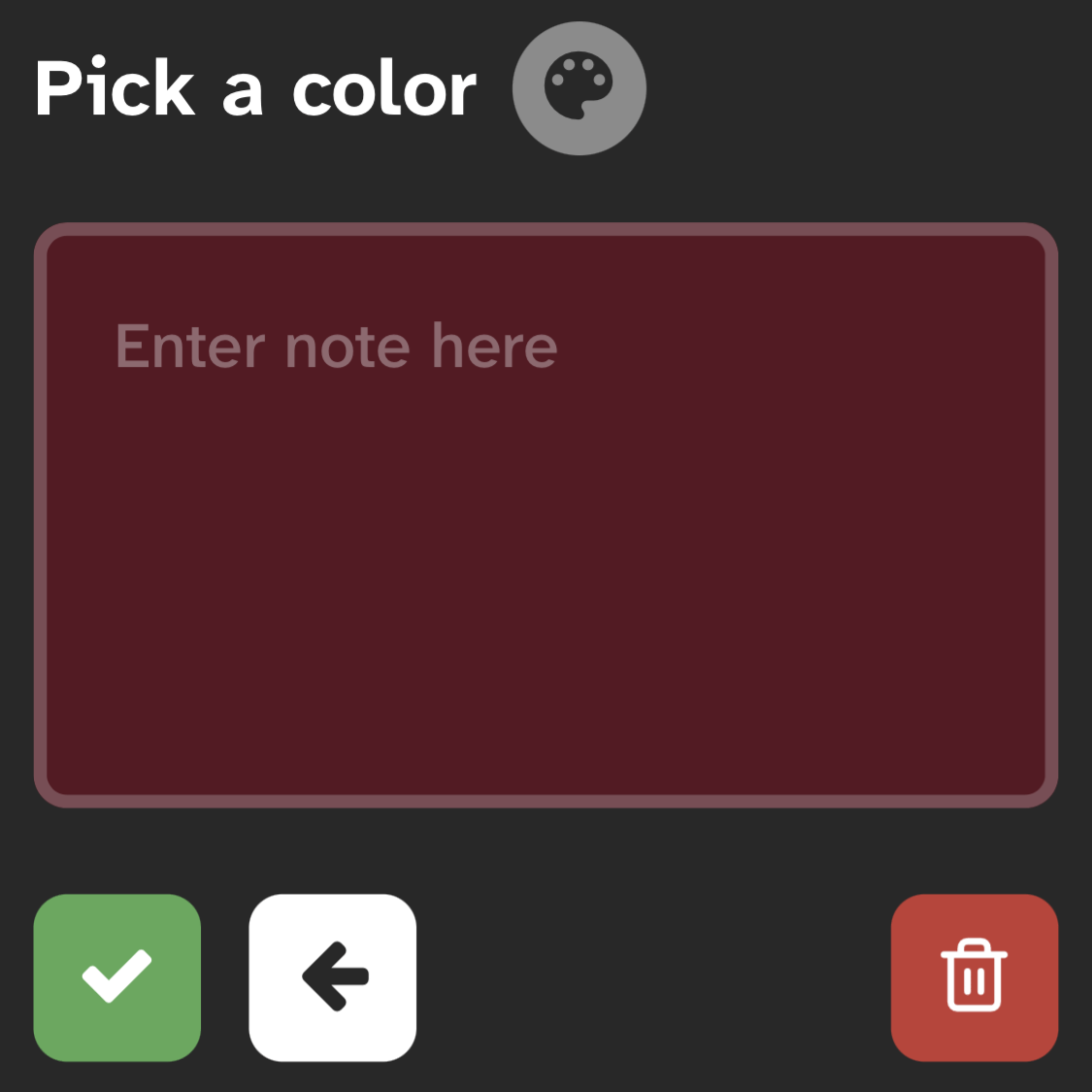
To add a note, use the "quick add" field at the top of the notepad for fast, single-line entries. For longer notes, tap or click the + button to open the full note editor, where you can write as much as you like and choose a color before saving.
Notes are plain text — no formatting or markup — with the exception of URLs, which are automatically converted into clickable links. Each note can be assigned one of nine colors, checked off when done, or deleted when it's no longer needed. Long notes are truncated on mobile with a "read more" link to keep things tidy.
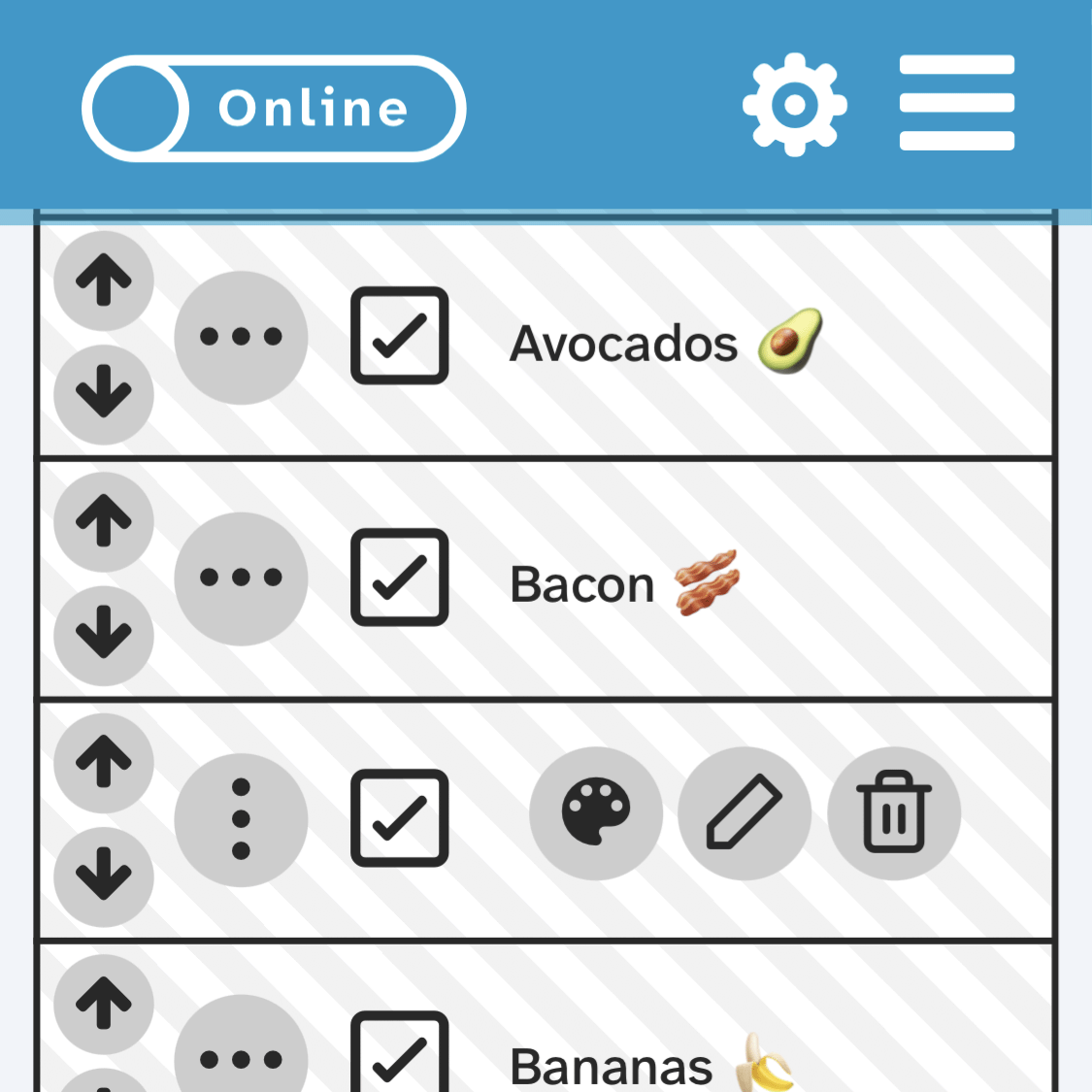
On desktop, every note shows a full set of tool buttons: edit, delete, color selector, and a sort handle. Click and drag the sort handle to reorder your notes. On mobile, tap the three-dots button on any note to reveal those same tool buttons. Use the up and down arrows to reorder.
Notepads can be locked with the creation of a password. Click the lock icon next to the notepad name and follow the instructions. Locked notepads are read-only — good for sharing with others whom you don't want to get edit access.
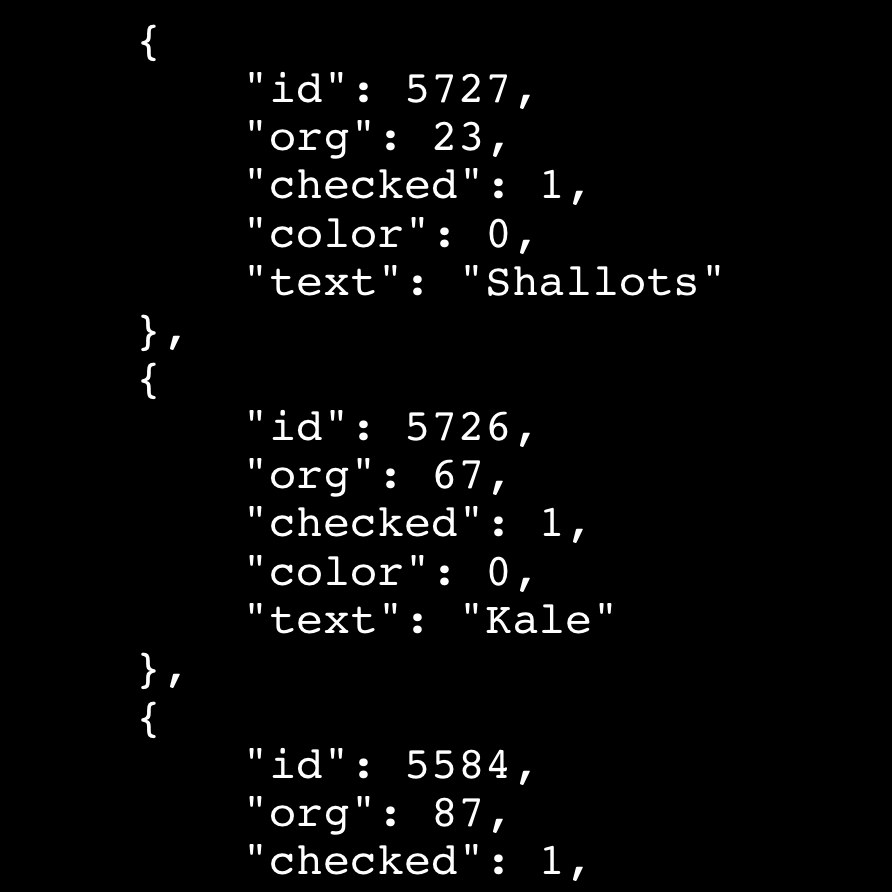
Every notepad has its own API URL, accessible via the API button in the notepad toolbar. That URL returns the notepad's notes as a JSON array, including each note's text, color, sort order, and checked state. You can use it to pull your Anonynote data into other apps, scripts, or automation workflows.
Personalization
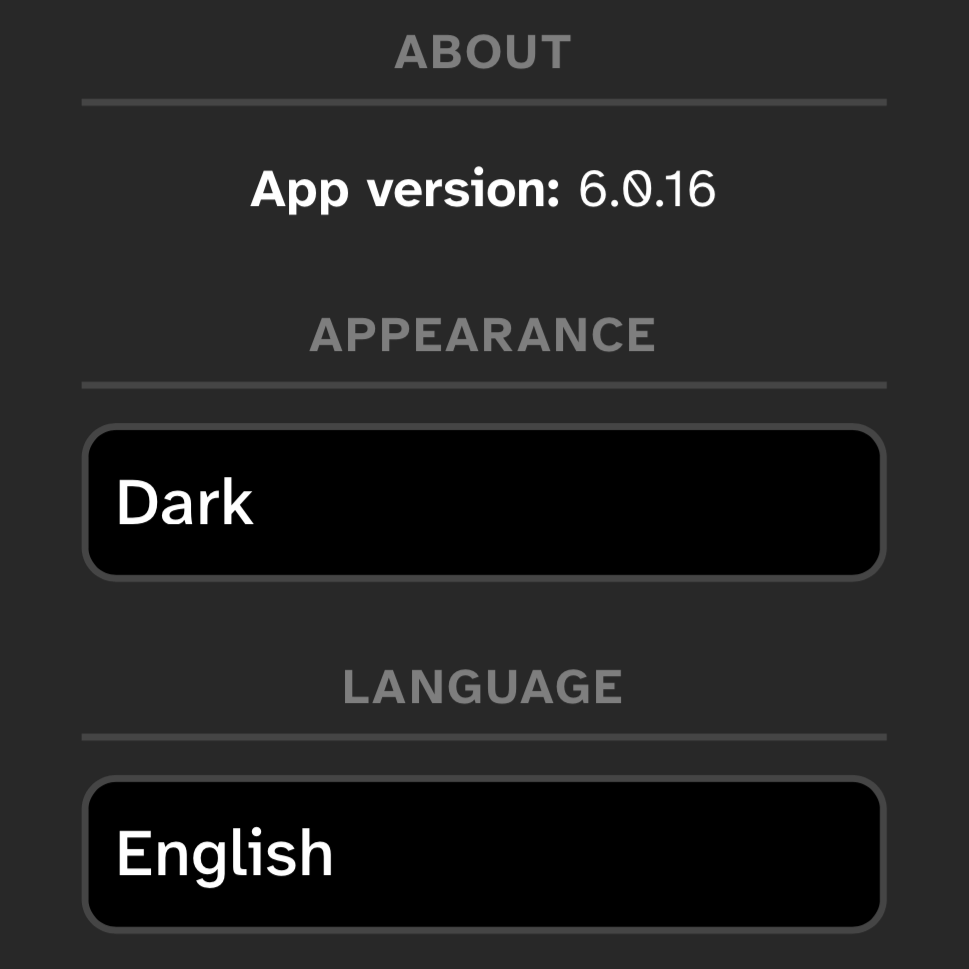
Tap the gear icon to open Settings. From there you can switch themes. On first launch, Anonynote matches your OS preference for light or dark mode, but you can change it, and additional themes are available. You can also switch the app language from Settings.
Works Offline
Lose your connection and Anonynote keeps working offline. Notes are stored locally until you're online again. You can also choose to work entirely offline if you don't want your notes to sync with Anonynote's server.
Install as a Web App
Anonynote is a Progressive Web App. It can be installed directly to your home screen. No app store, no download, no updates to manage. It launches full-screen like a native app and unlocks a few extra features described below. Installation takes about ten seconds.
On iPhone (Safari)
- Open Anonynote in Safari.
- Tap the Share button (the box with the arrow pointing up at the bottom of the screen).
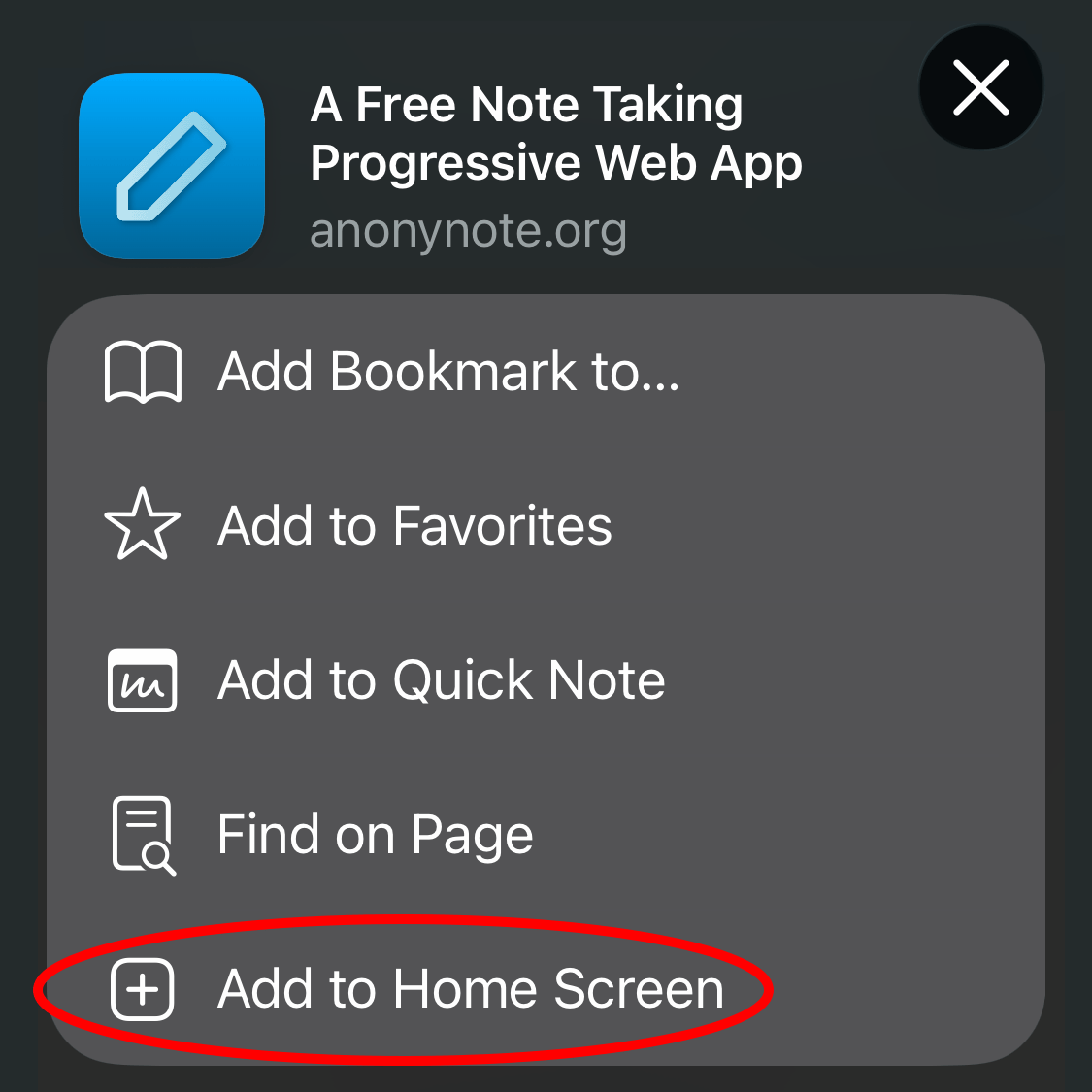
- Scroll down and tap Add to Home Screen. Then tap Add.
On Android (Chrome)
- Open Anonynote in Chrome.
- Tap the three-dot menu in the top-right corner.
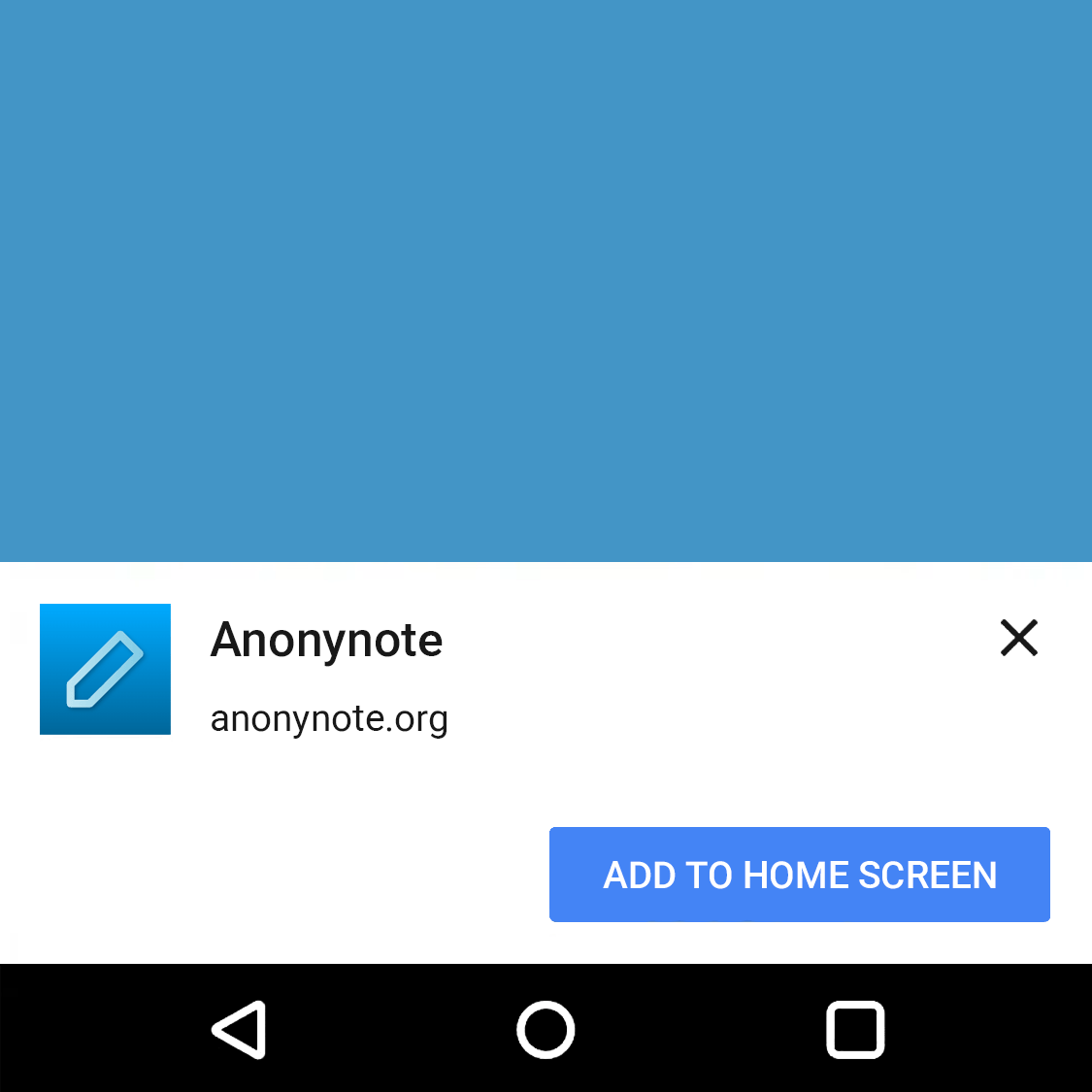
- Tap Add to Home Screen or Install app.
- Tap Install to confirm.
Web App Mode
Once installed, Anonynote gains a few features that aren't available in the browser.
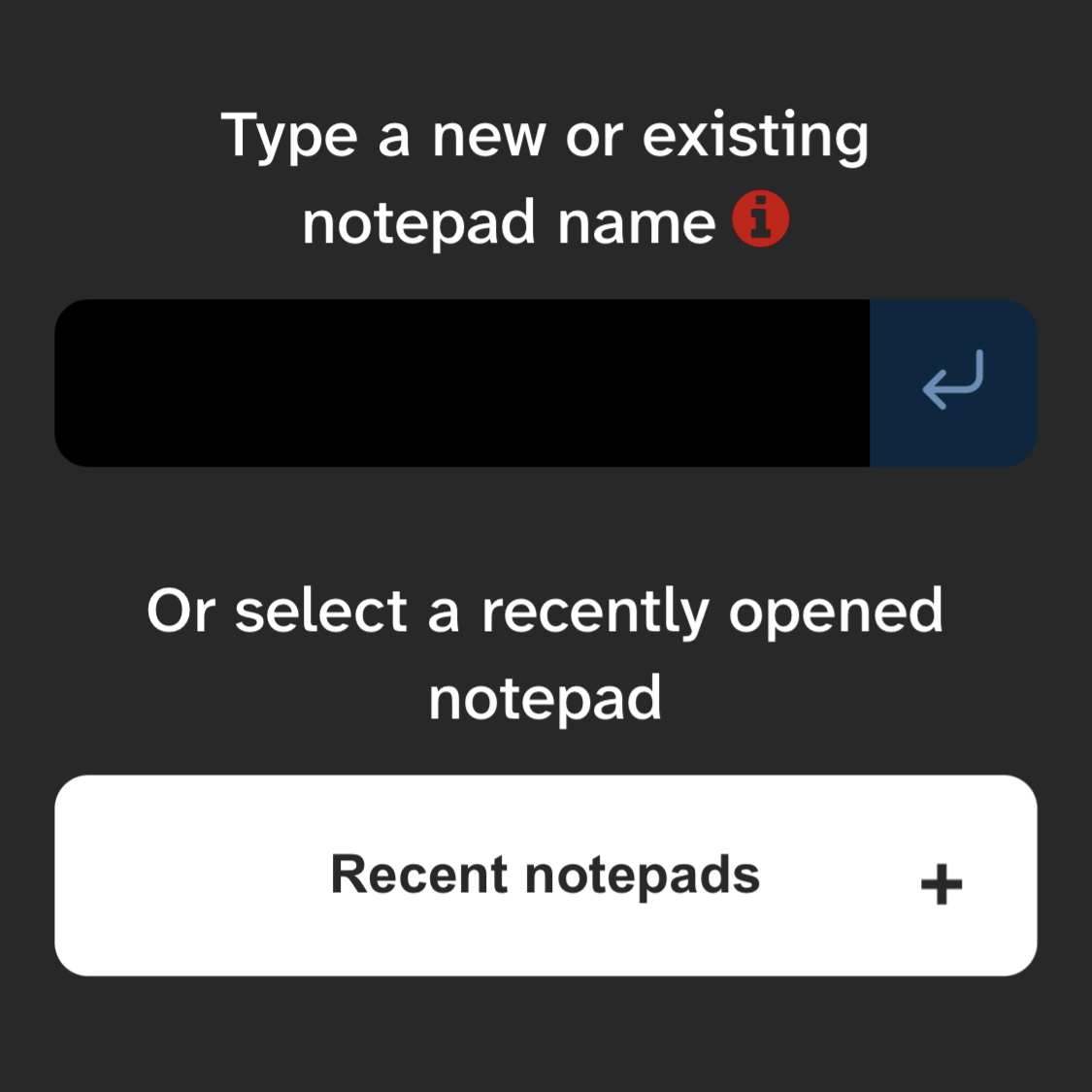
- Recent notepads. The home screen shows your recently opened notepads, so you can jump right back in without retyping a name.
- Picks up where you left off. Close the app and reopen it. It returns to exactly the notepad you were in, at exactly the scroll position you left.
- Long-press to copy. Press and hold any note for one second to copy its text to the clipboard.
Privacy & Security
Anonynote is built for speed and simplicity, not security. There are no user accounts, no ownership, and no audit trail. Do not store sensitive information here.
Your notepad name is your only protection. A weak or obvious name can be guessed, so use something unique. The same logic you'd apply to a strong password applies here.
Data is never automatically purged. When you no longer need a notepad's contents, consider deleting the notes yourself.